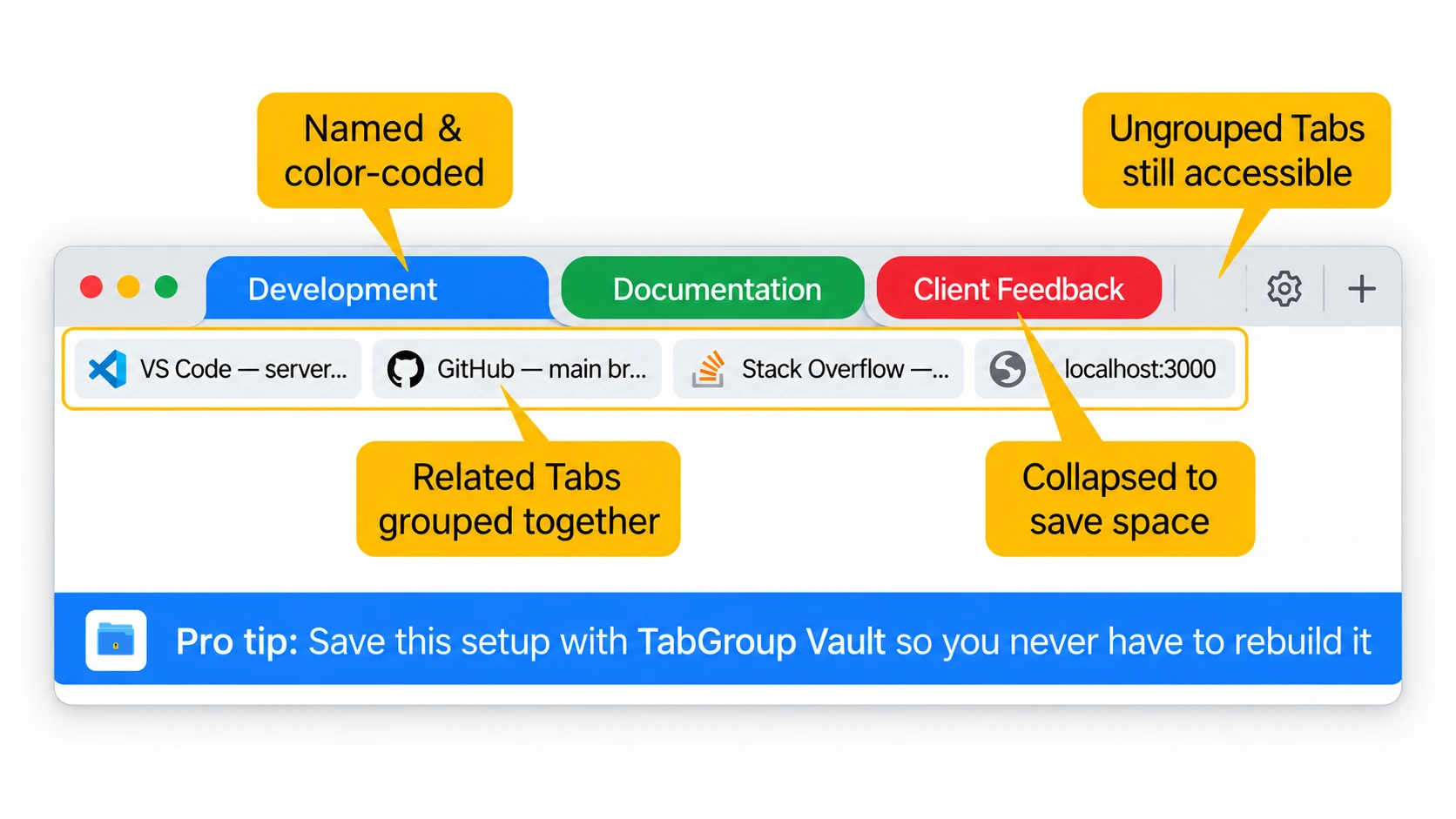
Quick Test: Make Your First Tab Group
To test Chrome Tab Groups, open five sample Tabs, right-click one Tab, choose "Add Tab to Group" and then "New Group," name it, add two more Tabs, collapse it, close the Group, then reopen it from the bookmarks bar or Chrome menu.
This tutorial gives you a clean first run: create a test Group, name it, color it, collapse it, move Tabs around, close the Group, and reopen it later. No prior Tab-Group muscle memory required.
Tab Groups are available in Chrome version 83 and later. Since Chrome updates automatically, most desktop users already have access. You can check your Chrome version by typing chrome://settings/help in the address bar.
Step 1: Create Your First Tab Group
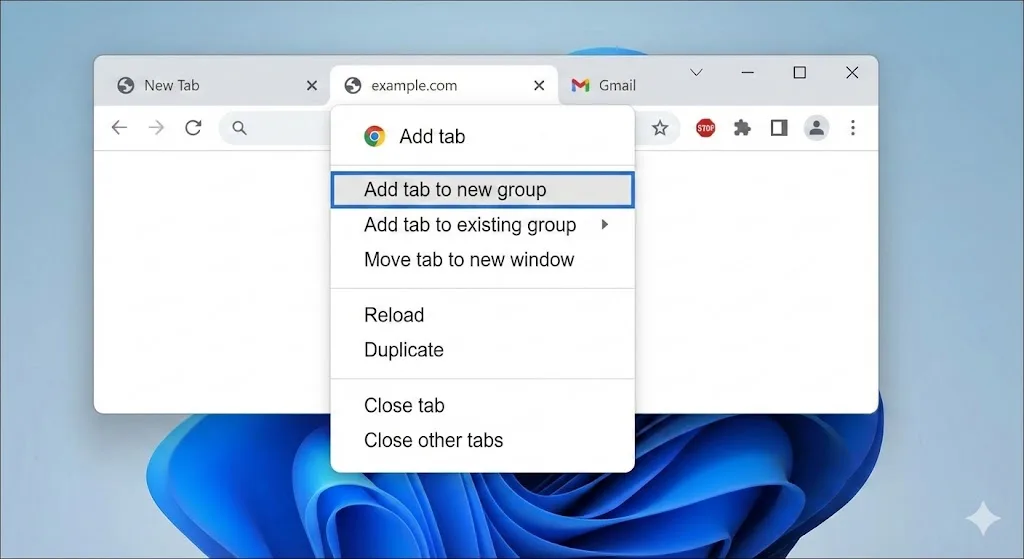
Start with the basics. Open Chrome and make sure you have at least one Tab open.
- Right-click the Tab you want to Group. A context menu appears.
- Click "Add Tab to a new Group."
- A small colored circle appears to the left of the Tab. This is your new Group.
Done. You have created a Tab Group. The Tab now has a colored underline and a small dot showing that it belongs to a Group.
Step 2: Name and Color Your Group
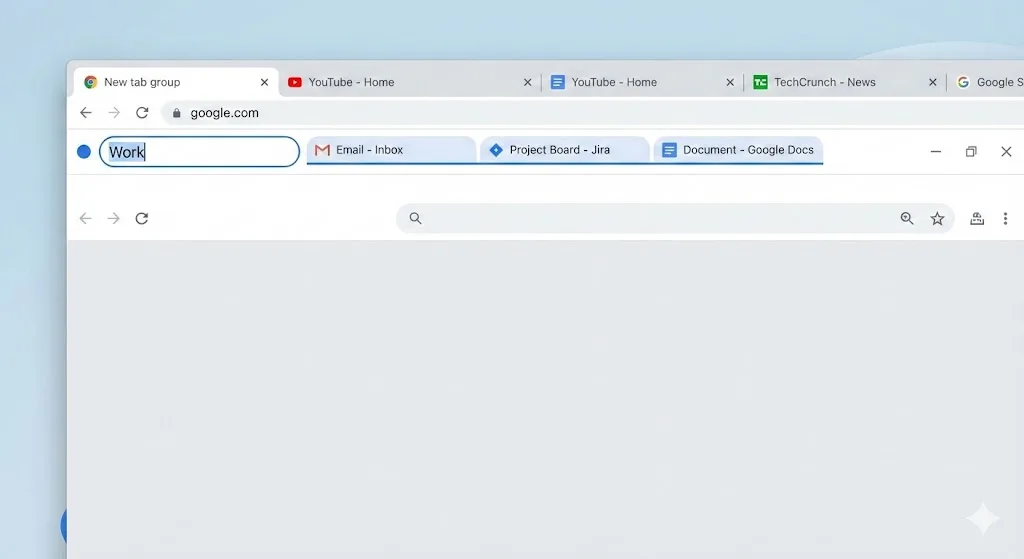
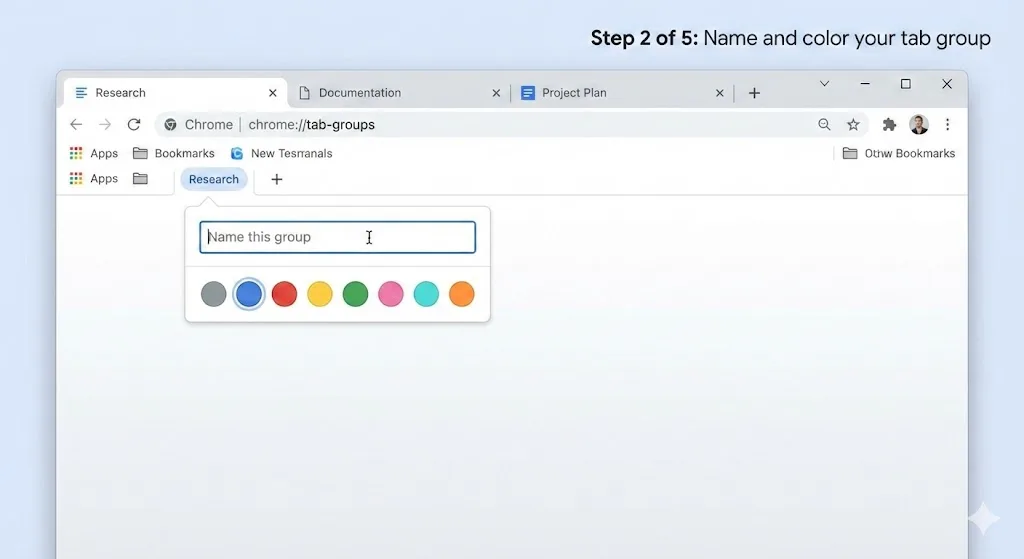
A Group without a name is hard to identify. Use this menu to label it:
- Click the colored dot (or Group label) to the left of the grouped Tab.
- A small popup appears with a text field and color options.
- Type a short name like "Work" or "Research."
- Click one of the eight color circles to choose a color.
- Click anywhere outside the popup to close it.
Your Group now has a named, colored label on the Tab bar. Keep names short, ideally one or two words, since the label needs to fit in the Tab bar alongside all your other Tabs and Groups.
Naming Tip
Use consistent, short names. Instead of "Research for Q2 Marketing Campaign," just use "Q2 Research." The shorter the name, the more Groups you can fit in your Tab bar.
Step 3: Add More Tabs to the Group
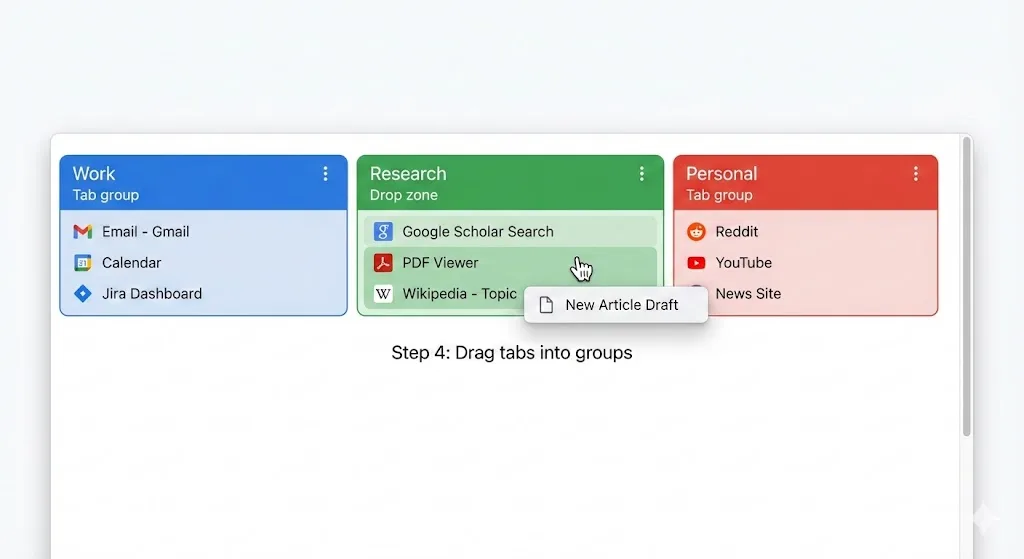
A Group with one Tab is not very useful. Here are three ways to add more Tabs:
Method A: Right-Click
- Right-click the Tab you want to add.
- Hover over "Add Tab to Group."
- Click the name of the Group you want to add it to.
Method B: Drag and Drop
- Click and hold the Tab you want to add.
- Drag it over the Group label or between Tabs that are already in the Group.
- Release the mouse button. The Tab is now part of the Group.
Method C: Group Multiple Tabs at Once
- Hold Ctrl (or Cmd on Mac) and click each Tab you want to select.
- Right-click one of the selected Tabs.
- Click "Add Tabs to a new Group" or add them to an existing Group.
Method C is the fastest way to organize a messy Tab bar. You can select ten Tabs at once and Group them all in a single action.
Step 4: Collapse and Expand Groups
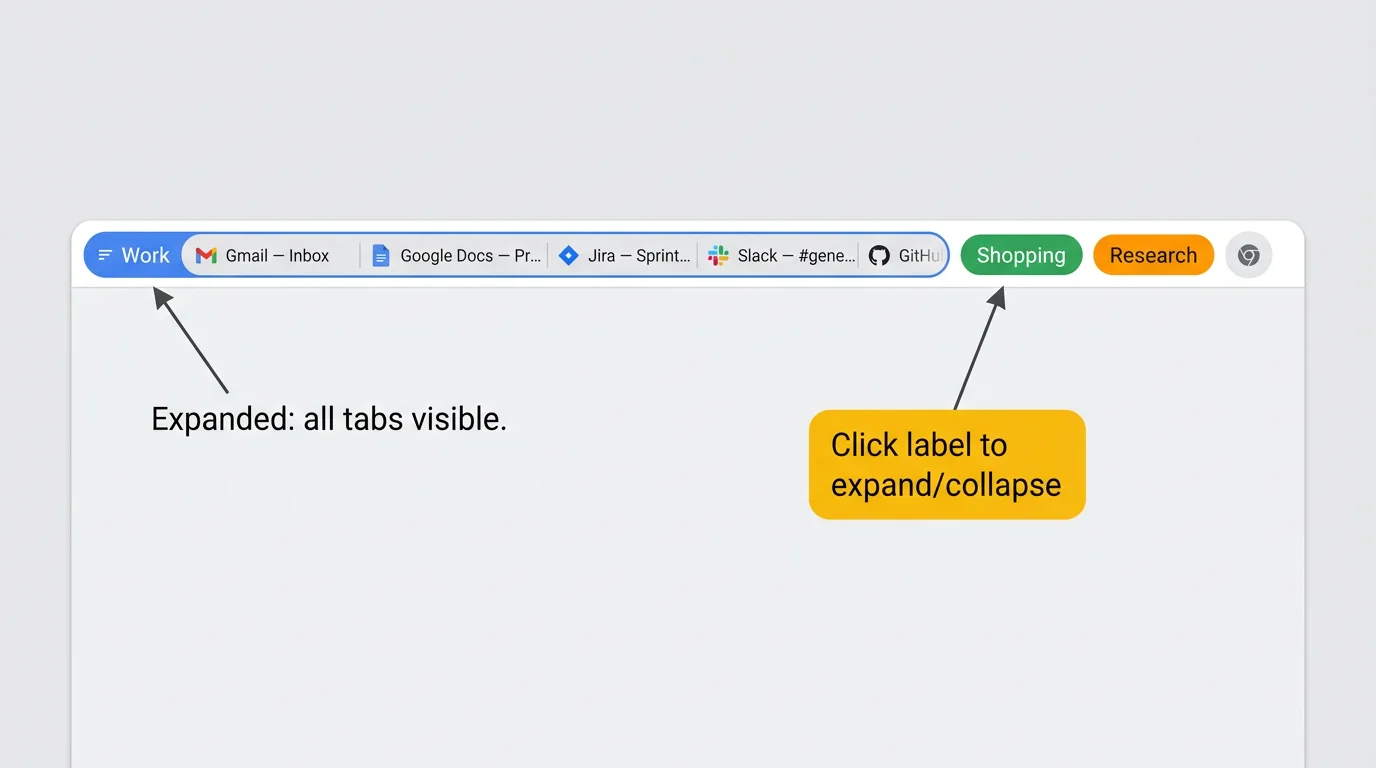
Collapsing is where Tab Groups start to pay off. When you collapse a Group, all the Tabs inside it disappear from view, leaving just the Group label visible. The Tabs are still loaded and accessible, but they no longer crowd your Tab bar.
- Click the Group label (the colored text on the Tab bar).
- The Group collapses, and all its Tabs are hidden.
- Click the label again to expand the Group and show its Tabs.
This helps when you have multiple projects open at once. Collapse everything except the project you are working on. Your Tab bar stays clean, and switching between projects takes one click.
If your Tab bar is still crowded, Chrome also supports vertical Tabs on desktop, which can make page titles and Tab Groups easier to scan.
Step 5: Move and Rearrange Tabs
As your work evolves, you will need to move Tabs between Groups or rearrange the order of your Groups.
Move a Tab to a Different Group
- Right-click the Tab.
- Hover over "Add Tab to Group."
- Select the destination Group. The Tab moves automatically.
Remove a Tab from a Group
- Right-click the Tab.
- Click "Remove from Group."
- The Tab becomes a standalone Tab outside any Group.
Rearrange Groups
- Click and hold the Group label.
- Drag it left or right on the Tab bar.
- Release to place the entire Group in its new position.
Step 6: Ungroup or Close a Group
When you are done with a Group, you have two options:
Ungroup (Keep Tabs Open)
- Right-click the Group label.
- Click "Ungroup."
- The Tabs remain open but are no longer grouped. The label and color disappear.
Close Group (Close All Tabs)
- Right-click the Group label.
- Click "Close Group."
- All Tabs in the Group are closed. Be careful with this one; make sure you do not need those Tabs before closing.
Be Careful
"Close Group" closes all Tabs in the Group immediately. If you had unsaved work in any of those Tabs, such as a half-finished form, check it before closing.
Step 7: Reopen Saved Tab Groups
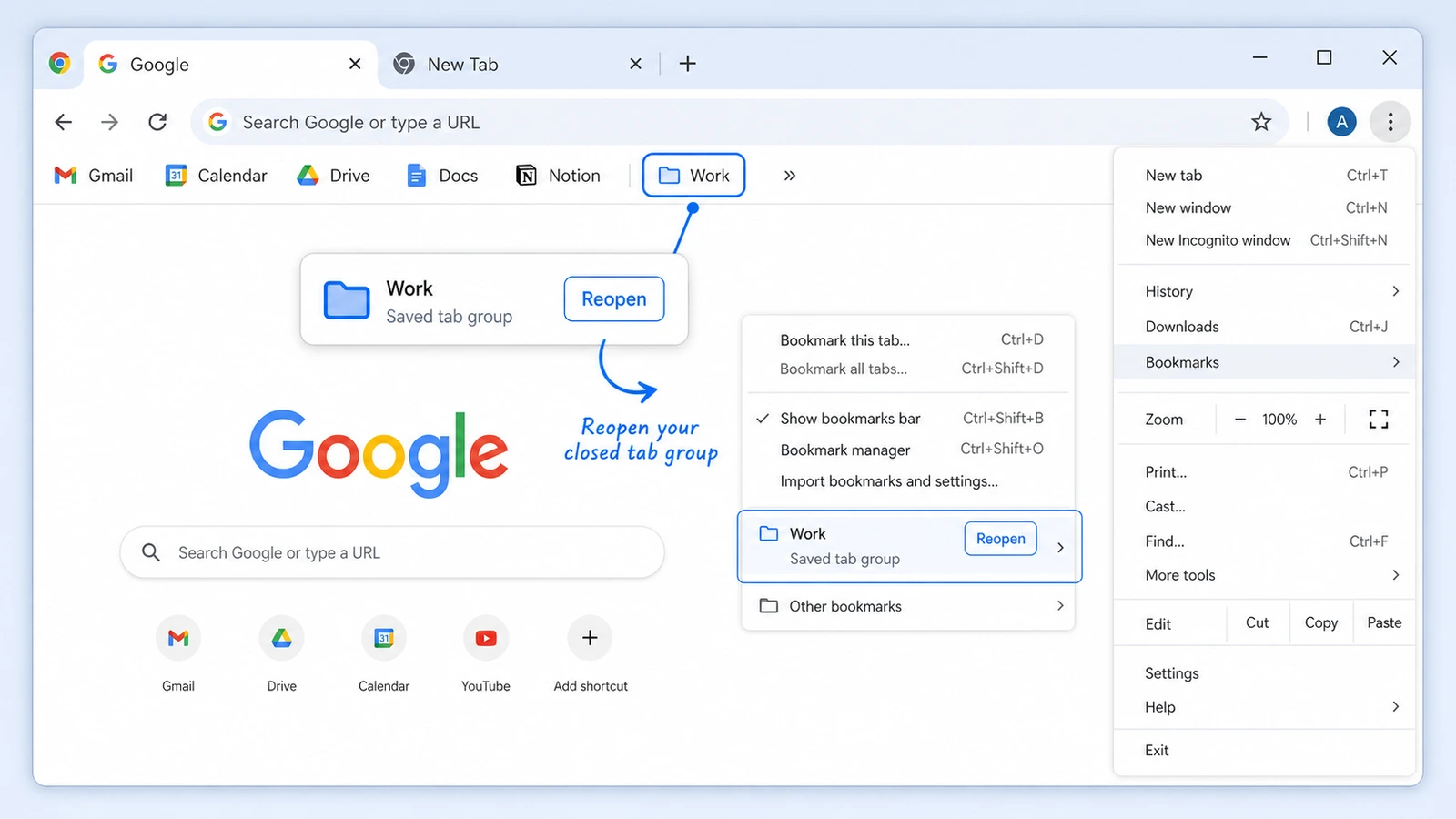
Chrome can automatically save and sync Tab Group changes when browsing history and Tabs sync are enabled for your Google Account. Closed Groups are not deleted; Chrome saves them in the bookmarks bar or Chrome menu so you can reopen them later.
Using Chrome's Built-In Reopen Flow
- Right-click the Group label.
- Click "Close Group" when you are done with that set of Tabs.
- Look for the saved Group in the bookmarks bar or Chrome menu.
- Click the Group to reopen its Tabs.
Chrome's built-in saving works for basic continuation, but Tab Groups are not a replacement for bookmarks or a dedicated Session manager, especially for local files or long-term archiving. Some users report restore or sync confusion, and Chromium has documented specific edge cases such as local files not being saved in hidden saved Groups. Our guide on how to save Tab Groups in Chrome explains the practical options.
TabGroup Vault: Save Groups Reliably
TabGroup Vault takes full snapshots of all your Tab Groups with one click. Snapshots are stored independently from Chrome's built-in saved Groups, and you can keep multiple versions so you can go back to how your Groups looked yesterday or last week. Free tier includes 10 snapshots; Pro is $39 one-time.
Step 8: Use Tab Groups in Your Daily Routine
Once the mechanics feel familiar, fold Tab Groups into your day:
Morning Setup
When you start work, create a Group for your primary task. If you closed Groups from the day before, reopen them from the bookmarks bar or Chrome menu. Open the Tabs you need and add them to the appropriate Group.
During the Day
As you open new Tabs, immediately add them to the relevant Group. This prevents your Tab bar from getting cluttered. When you switch tasks, collapse the Group you are leaving and expand the one you are moving to.
End of Day
Before ending the day, close any Groups that are finished and confirm the Groups you still need are easy to find again. Tomorrow's Tab bar will thank you.
Practice Exercise
Try this quick exercise to build your Tab Group skills:
- Open Chrome and navigate to five different websites (any sites you like).
- Group the first three Tabs into a Group called "Work" with a blue color.
- Group the other two Tabs into a Group called "Personal" with a green color.
- Collapse the "Personal" Group.
- Open a new Tab and add it to the "Work" Group by dragging it.
- Move one Tab from "Work" to "Personal" using the right-click method.
- Right-click the "Work" Group label, close the Group, then reopen it from the bookmarks bar or Chrome menu.
If you completed all seven steps, you know enough to use Tab Groups in normal daily work.
Common Questions from Beginners
Can I have a Tab in two Groups at once?
No. Each Tab can belong to only one Group at a time. If you need the same page in two Groups, open it in a second Tab and add each Tab to a different Group.
Do collapsed Groups still use memory?
Yes. Collapsing a Group hides the Tabs visually but does not unload them from memory. Chrome's Memory Saver feature may automatically unload inactive Tabs to save RAM, but this is a separate feature from Tab Groups.
What happens if I have no Groups and want to Group all my existing Tabs?
Select all Tabs by pressing Ctrl+A (or Cmd+A on Mac) while focused on the Tab bar, then right-click and create a new Group. Alternatively, select a subset of Tabs with Ctrl+click and Group those first, then repeat for the remaining Tabs.
For a broader overview of Tab Group features, read our main Chrome Tab Groups guide. If you want keyboard workflows for creating Groups, opening Group menus, adding or removing Tabs, and collapsing or expanding Groups, use the Chrome Tab Groups keyboard shortcuts cheat sheet.