The Problem With Unsaved Sessions
Every tab you have open represents a decision: a page worth keeping, a task in progress, a reference you might need. Most people accumulate 20 to 50 tabs over a work session, and many keep 100 or more open across multiple windows. All of that context lives in Chrome's memory, and it can vanish in an instant.
A Chrome crash, an unexpected restart, or an accidental window close can erase hours of tab curation. The question is not whether you should save your Chrome session. The question is which method to use. Each approach has different trade-offs in reliability, effort required, and what data is preserved.
Method 1: Manual Bookmarking
The simplest way to save your current tabs is to bookmark them all at once.
How to do it
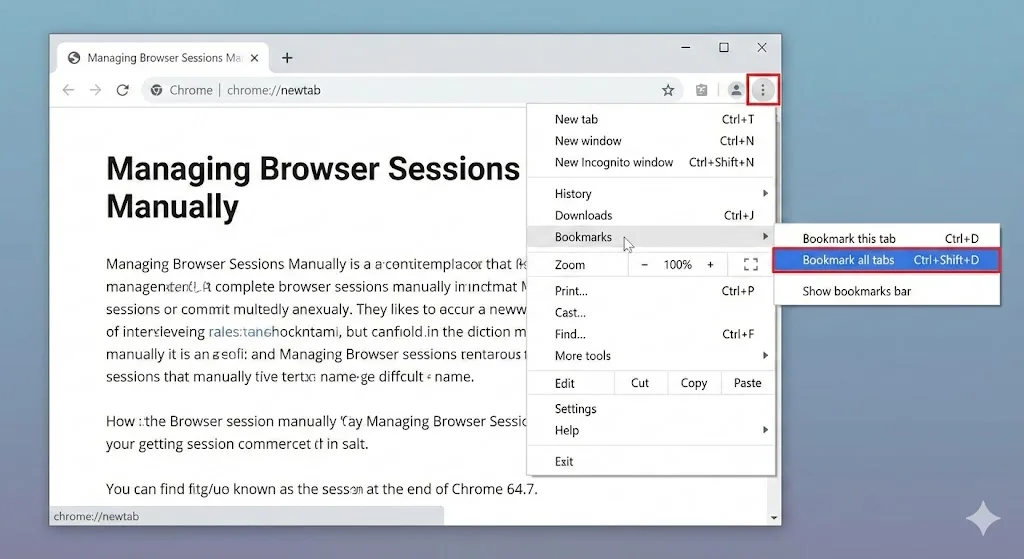
- Press Ctrl+Shift+D (Cmd+Shift+D on Mac) to bookmark all open tabs in the current window.
- Chrome will create a new bookmark folder with all the tab URLs.
- Name the folder something meaningful (for example, "Work Session - Feb 11" or "Research Project").
- To restore, right-click the folder in your Bookmarks Bar and select "Open all."
Advantages
- Built into Chrome -- no extensions needed.
- Bookmarks sync across devices via your Google account.
- Simple and familiar to most users.
Disadvantages
- You have to remember to do it. If you forget and Chrome crashes, your session is gone.
- Only saves tabs from the current window. Multiple windows require multiple save operations.
- Does not preserve tab groups. All tabs are saved as a flat list of URLs.
- Bookmark folders become cluttered quickly if you save sessions regularly.
- No way to automatically overwrite or update a saved session.
Pro Tip
If you use manual bookmarking, create a dedicated "Sessions" folder in your bookmarks. Save session folders inside it with dates in the names. Delete old session folders periodically to prevent clutter.
Method 2: Chrome's "Continue Where You Left Off"
Chrome has a built-in setting designed to restore your previous session automatically every time you open the browser.
How to enable it
- Go to chrome://settings/onStartup in your address bar.
- Select "Continue where you left off."
- The setting takes effect immediately.
Advantages
- Completely automatic for normal shutdowns.
- No extensions required.
- Restores all windows and tabs from the last session.
Disadvantages
- Fails after crashes. Corrupted session files mean Chrome opens blank.
- Inconsistent with Chrome auto-updates that restart the browser.
- Does not preserve tab group names, colors, or structure.
- Only stores the most recent session. You cannot go back to a session from two days ago.
- Multiple windows are only partially restored.
Method 3: Export Tabs as a List
Some users save their sessions by copying all tab URLs into a text file or spreadsheet. There are several ways to do this:
- Right-click method: Right-click a tab, select "Send to," or use Chrome's built-in sharing features to copy URLs.
- Extensions for exporting: Simple extensions can export all open tab URLs to a text file, CSV, or JSON format.
- Manual copy: Some users type
chrome://tabsor use developer tools to extract URLs.
Advantages
- Creates a permanent, portable record of your tabs.
- Can be stored anywhere: cloud drive, email, note-taking app.
- Human-readable format.
Disadvantages
- Manual process that requires effort every time.
- Restoring requires opening each URL individually (or pasting into a bulk opener).
- No tab group information preserved.
- Easy to forget, especially when you are in the middle of work.
Method 4: Session Manager Extensions (Automatic)
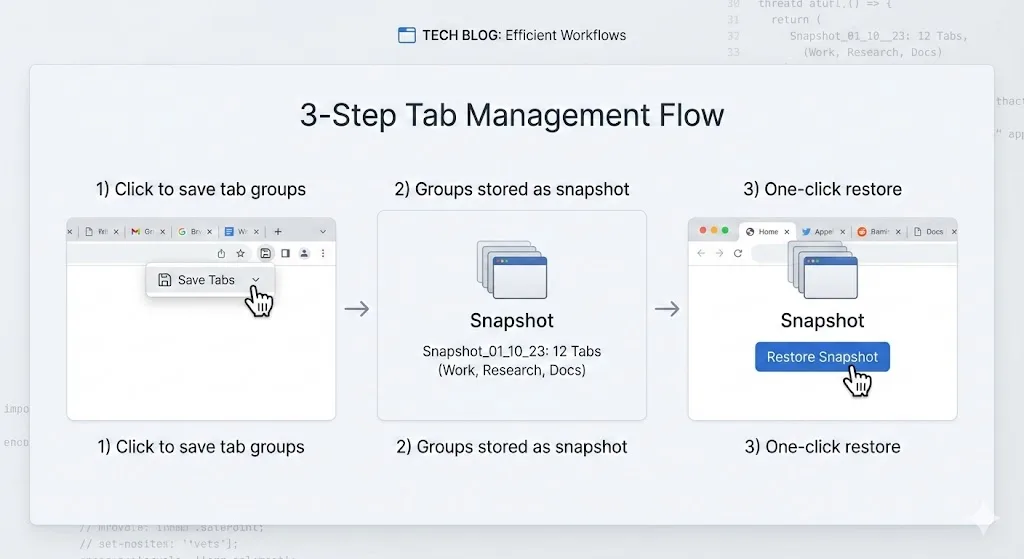
Session manager extensions automate saving and restoring Chrome sessions. They run in the background, periodically capturing your current tab state and storing it independently from Chrome's internal session files.
How automatic session saving works
- Install a session manager extension from the Chrome Web Store.
- The extension automatically saves snapshots of your tabs at regular intervals.
- If Chrome crashes, updates, or restarts, open the extension to see your saved sessions.
- Click to restore an entire session or individual tab groups.
TabGroup Vault -- Automatic Session Backup
TabGroup Vault automatically saves snapshots of your Chrome tab groups, including group names, colors, and tab order. Data is stored independently from Chrome, so it survives crashes and updates. Free tier: 5 snapshots. Pro ($29 one-time): unlimited snapshots, bulk restore, Google Drive backup, 5 Chrome profiles.
Advantages
- Runs automatically -- no action required from you.
- Data stored independently from Chrome's session files.
- Multiple snapshots preserved over time (not just the last session).
- Tab-group-aware extensions preserve complete group structure.
- Cloud backup options protect against hardware failure.
Disadvantages
- Requires installing a third-party extension.
- Premium features typically require payment.
- Adds a small amount of background processing.
Head-to-Head Comparison
| Criteria | Manual Bookmarks | Chrome Setting | Export to File | Extension Auto-Save |
|---|---|---|---|---|
| Effort required | High (manual) | None (automatic) | High (manual) | None (automatic) |
| Crash protection | Only if saved before crash | Often fails | Only if exported before crash | Always protected |
| Tab groups preserved | No | Inconsistent | No | Yes (with the right extension) |
| Multiple sessions | Yes (manual folders) | No (last session only) | Yes (multiple files) | Yes (automatic snapshots) |
| Cloud backup | Via bookmark sync | No | Manual upload | Built-in (some extensions) |
| Restore speed | Fast (open all) | Automatic | Slow (copy-paste URLs) | Fast (one click) |
| Cost | Free | Free | Free | Free or paid |
The Recommended Setup
The most reliable approach uses two layers of protection:
Layer 1: Chrome's built-in setting
Enable "Continue where you left off" at chrome://settings/onStartup. This handles the simple case of closing and reopening Chrome during normal use. It costs nothing and requires no maintenance.
Layer 2: An automatic backup extension
Install a session backup extension that saves your tabs independently and automatically. This is your safety net for crashes, forced restarts, Chrome updates, and any other scenario where the built-in setting fails. If the extension supports tab groups, you also preserve your organizational structure.
Optional Layer 3: Periodic manual export
For critical research sessions or project work, do a manual bookmark save (Ctrl+Shift+D) before major milestones. This gives you a permanent, Chrome-sync-compatible backup you can access from any device, even without the extension installed.
What About Chrome Profiles?
Chrome profiles add another dimension to session saving. Each Chrome profile maintains its own session data, bookmarks, extensions, and history. If you use separate profiles for work and personal browsing, save sessions for each profile independently.
Most session manager extensions only save data for the active profile. If you need multi-profile session management, look for extensions that explicitly support this. TabGroup Vault's Pro tier supports up to 5 Chrome profiles, each with its own independent snapshot history.
Saving Sessions on Chromium-Based Browsers
If you use Microsoft Edge, Brave, or Vivaldi instead of Chrome, the same principles apply. These browsers are built on Chromium and support Chrome extensions. The built-in session restore features work similarly and have similar limitations. Most Chrome session manager extensions are compatible with these browsers.
One difference worth noting: some Chromium browsers have their own session management features. Edge has its own tab grouping and session features, and Vivaldi has built-in session saving that is more robust than Chrome's. An independent backup extension still adds protection beyond what any browser provides natively.