How to Bookmark All Tabs in Chrome
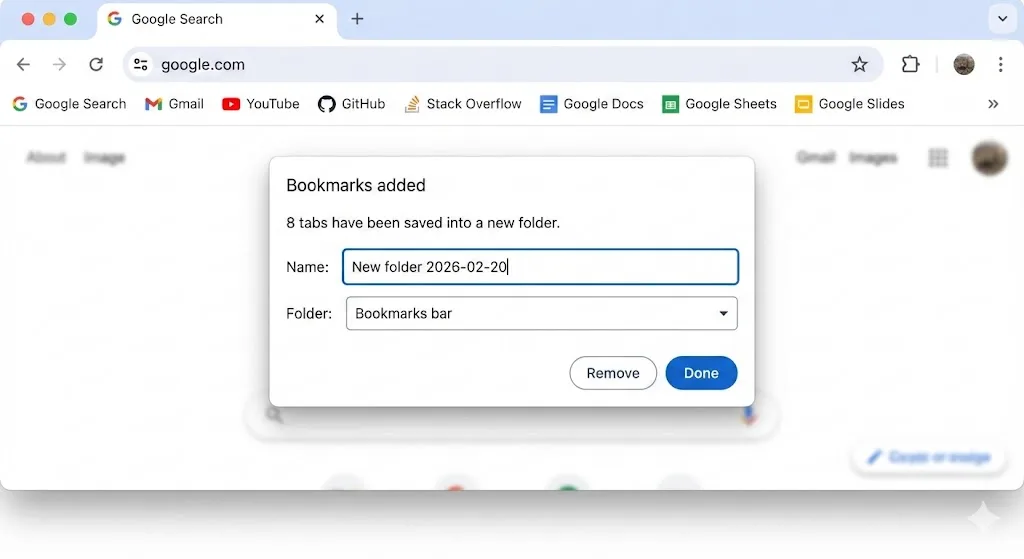
Chrome has a built-in feature for bookmarking every open tab at once. It has been available for years and works in every version of Chrome. Here is how to use it.
Method 1: Keyboard shortcut
Press Ctrl+Shift+D on Windows or Linux, or Cmd+Shift+D on Mac. A dialog box will appear asking you to name a folder. Chrome creates a new bookmark folder and saves every open tab in the current window as a bookmark inside that folder.
Method 2: Right-click menu
- Right-click on any tab in the tab bar.
- Select "Bookmark all tabs" from the context menu.
- Name the folder and choose where to save it.
- Click "Save."
Method 3: Chrome menu
- Click the three-dot menu in the top-right corner of Chrome.
- Hover over "Bookmarks and lists."
- Select "Bookmark all tabs."
- Name the folder and save.
When Bookmarking All Tabs Works Well
The bookmark-all-tabs feature is genuinely useful in several scenarios.
Archiving completed research
If you have finished a research project and want to save the pages for reference without keeping them open, bookmarking them into a named folder is quick and effective. You probably will not need to reopen all of them at once, and individual bookmarks are easy to find with Chrome's bookmark search.
Saving a simple set of pages
When you have a small number of tabs (under 10) that all relate to one thing, a bookmark folder works fine. For example, saving five recipe pages into a "Thanksgiving Dinner" folder. The structure is flat and simple enough that bookmarks handle it well.
Creating a permanent reference collection
Some collections of pages are truly permanent: your favorite news sources, development documentation sites, tools you use daily. Bookmark folders are ideal for these because they persist indefinitely and sync across devices via your Google account.
Quick Tip
You can open all bookmarks in a folder at once by right-clicking the folder and selecting "Open all." This works as a basic session restore, though it does not preserve tab groups or tab order.
When Bookmarking All Tabs Falls Short
Despite its convenience, the bookmark-all-tabs approach has significant limitations for anyone who relies on tab groups or manages active workflows.
Tab groups are lost
This is the biggest problem. If you have tabs organized into color-coded groups named "Design Research," "Competitor Analysis," and "Budget," bookmarking all tabs dumps every tab from every group into a single flat list. The group names, colors, and which tabs belonged to which group are all gone.
When you reopen the bookmarks, you get all tabs in a single window with no groups. You have to manually recreate every group and sort tabs back into them. For a complex setup with 30-50 grouped tabs, this can take 15-20 minutes.
Tab order is unreliable
Bookmarks are saved roughly in the order tabs appear, but this is not guaranteed. Tabs from different groups can interleave unpredictably. If the order of your tabs matters for your workflow (first tab is the overview document, second is the data source, etc.), bookmarks may not preserve that.
No automatic saving
Bookmarking all tabs is a manual action. If Chrome crashes before you remember to bookmark, your tabs are gone. There is no scheduled or automatic bookmarking feature in Chrome. You have to remember to do it, which most people forget.
Bookmark folder accumulation
If you bookmark all tabs regularly, you quickly end up with dozens of bookmark folders. Without a clear naming convention and regular cleanup, the bookmark bar becomes as cluttered as the tab bar was. Many people create these folders and never open them again.
No restore preview
Before restoring bookmarks, you cannot see a preview of what is in the folder without expanding it. With many folders, you may not remember which one contains the tabs you need. Tab group snapshots in tools like TabGroup Vault show you the group names, colors, and tab titles before you restore.
| Feature | Bookmark All Tabs | TabGroup Vault |
|---|---|---|
| Save all tabs at once | Yes | Yes |
| Preserve tab groups | No | Yes (names, colors, order) |
| Preserve tab order | Approximately | Exactly |
| Auto-save | No | Yes (Pro) |
| Restore preview | No | Yes |
| One-click full restore | Partial | Yes |
| Cross-device sync | Yes (via Google account) | Via export |
| Price | Free (built-in) | Free / $29 Pro |
A Better Approach for Active Workflows
If you are bookmarking all tabs because you want to save your current workspace and come back to it later, there is a better approach: use Chrome tab groups combined with TabGroup Vault.
The workflow
- Organize tabs into groups using Chrome's built-in tab group feature. Name each group and assign a color.
- Save a snapshot with TabGroup Vault. This captures every group with its name, color, tab order, and URLs.
- Close the groups you do not need right now. They are saved in the snapshot.
- Restore when needed. Click the snapshot in TabGroup Vault to bring back the exact tab group setup you had.
This preserves all the structure that bookmarking loses. It is faster to restore (one click vs reopening and re-grouping), and it can be automated with TabGroup Vault Pro's auto-save feature.
TabGroup Vault
The bookmark alternative for tab groups: Saves and restores Chrome tab groups with full fidelity. One click to save, one click to restore.
Free: 5 snapshots. Pro: $29 one-time for unlimited snapshots and auto-save.
When to Use Each Method
The best approach depends on your intent.
- Use "Bookmark All Tabs" when: You want to archive a set of pages permanently, you do not need tab group structure, or you want cross-device access via Chrome sync.
- Use TabGroup Vault when: You want to save and restore an active workspace, tab group structure matters, or you need automatic saving and crash protection.
- Use both when: Bookmark individual pages you want long-term, and use TabGroup Vault for your active tab group workflows. They complement each other perfectly.
For more on organizing your tabs with both native tools and extensions, see our definitive guide to organizing Chrome tabs. If you are trying to decide between different tab saving tools, our review of 7 Chrome tab managers compares all the options.