Immediate Recovery Steps (Do These First)
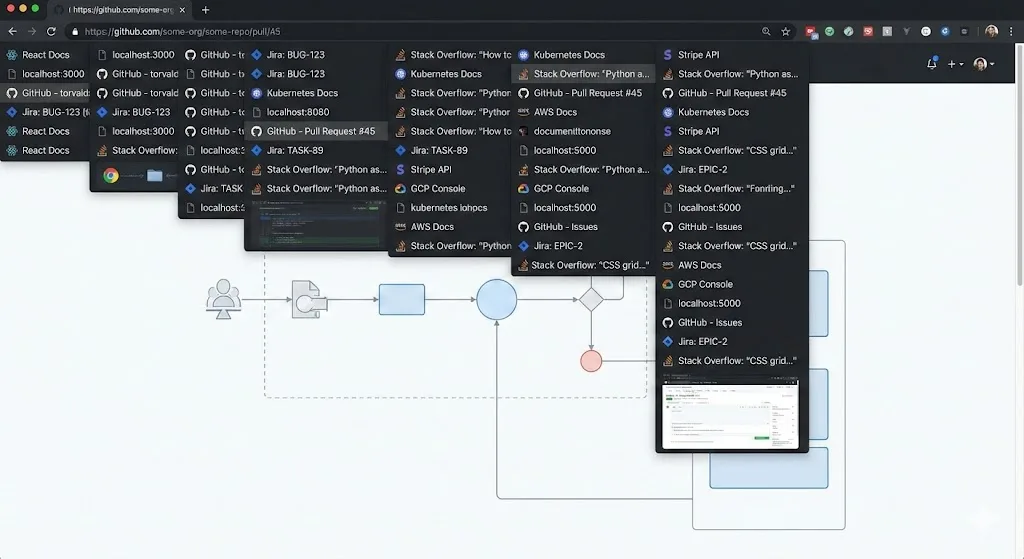
If Chrome just crashed or you just noticed your tabs are gone after an update, follow these steps in order. Time matters -- some recovery methods work less well the more you interact with Chrome after the loss.
Step 1: Try Ctrl+Shift+T immediately
Press Ctrl+Shift+T (Cmd+Shift+T on Mac) as soon as Chrome reopens. Do this before opening any new tabs or navigating anywhere. Press the shortcut repeatedly -- each press restores one more previously closed tab or window.
This works best when Chrome closed a window (due to a crash or accidental close) and then reopened. Chrome keeps a queue of recently closed items, and this shortcut walks backward through that queue.
If it works: Keep pressing until all your tabs are back. You are done.
If it does not work: Move to Step 2.
Step 2: Check Recently Closed in the History menu
- Click the three-dot menu in Chrome's top-right corner.
- Hover over History.
- Look at the "Recently closed" section.
- If you see windows or tabs listed, click them to restore.
This section shows items closed during the current Chrome session. After a crash, it may be empty. If it is, continue to Step 3.
Step 3: Search your full browsing history
Press Ctrl+H (Cmd+Y on Mac) to open Chrome's full History page. This is your most reliable recovery tool because Chrome's browsing history persists across crashes. It records every page you visited, organized by date and time.
- Look at the most recent entries -- these are likely the tabs you had open.
- Use the search bar to find specific sites or topics.
- Open each page you need in a new tab.
The History page will not tell you which tabs were open simultaneously, so you will need to reconstruct your session manually. But the data is almost always there.
Advanced Recovery: Session File Swap
If the methods above did not recover enough tabs, you can try recovering Chrome's session files directly. This is a more technical approach, but it can sometimes restore an entire session that Chrome's own restore mechanism failed to recover.
Prerequisites
- You need to close Chrome completely before attempting this.
- Make sure no Chrome processes are running in the background (check Task Manager on Windows or Activity Monitor on Mac).
Step-by-step process
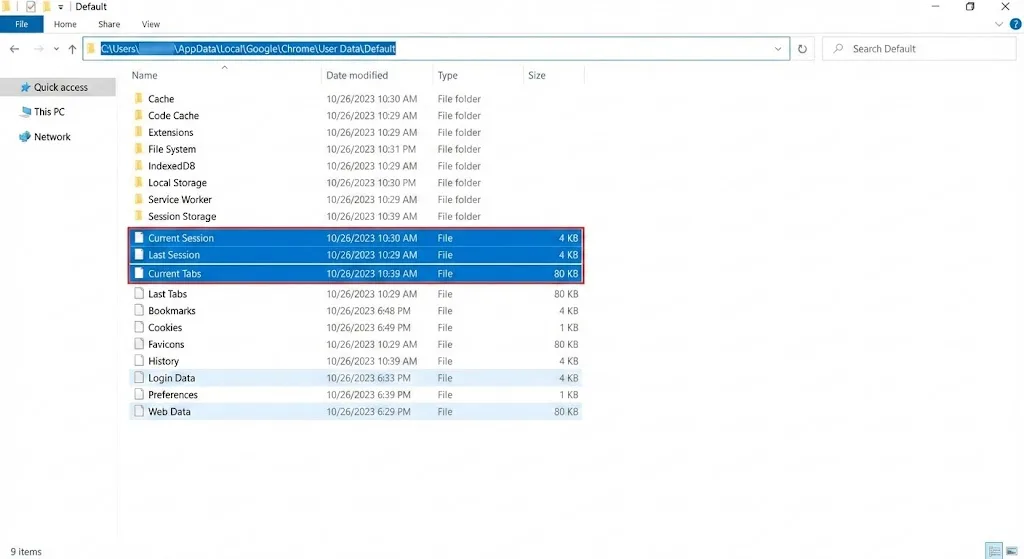
- Close Chrome completely. On Windows, check Task Manager (Ctrl+Shift+Esc) for any Chrome processes and end them. On Mac, check Activity Monitor.
- Navigate to Chrome's profile directory:
- Windows: Open File Explorer and paste
%LOCALAPPDATA%\Google\Chrome\User Data\Default\into the address bar. - Mac: Open Finder, press Cmd+Shift+G, and enter
~/Library/Application Support/Google/Chrome/Default/ - Linux: Navigate to
~/.config/google-chrome/Default/
- Windows: Open File Explorer and paste
- Locate the session files. You are looking for four files:
Current Session-- Chrome's active session dataCurrent Tabs-- Chrome's active tab dataLast Session-- backup from the previous sessionLast Tabs-- backup tab data from the previous session
- Back up the current files. Rename
Current SessiontoCurrent Session.bakandCurrent TabstoCurrent Tabs.bak. - Replace with the backup files. Copy
Last Sessionand rename the copy toCurrent Session. CopyLast Tabsand rename the copy toCurrent Tabs. - Reopen Chrome. It should now restore the previous session.
Important Warning
This method does not always work. If Chrome crashed hard enough to corrupt both session files, neither will contain usable data. Always make backup copies of the files before renaming anything. Do not delete the original files until you have confirmed the recovery worked.
Recovery After a Chrome Update
Chrome updates are a frustrating source of tab loss because they happen automatically and often restart the browser without warning. Here is what typically happens:
- Chrome downloads an update in the background.
- At some point, Chrome restarts to apply the update.
- The restart process may not properly save all session data.
- When Chrome reopens, some or all tabs are missing.
The recovery methods above (Ctrl+Shift+T, History, session files) all apply after an update. Additionally, Chrome sometimes shows a "Restore" notification bar at the top of the window after an update -- if you see this, click it immediately.
What About Tab Groups?
If you used Chrome tab groups to organize your work, recovering after a crash is harder. Chrome's session restore has a known weakness with tab groups: even when tabs are successfully recovered, the group assignments (names, colors, which tabs belong to which group) are often lost.
None of the recovery methods described above can restore tab group structure after the fact. The History page shows individual URLs, not group assignments. The session file swap may or may not preserve group data depending on how the crash occurred. The only reliable way to protect tab groups is proactive backup before a crash happens.
Building a Prevention Plan
Recovery after a crash is stressful and unreliable. The better approach is prevention -- setting up systems that protect your tabs automatically so that when a crash happens (and it will), recovery is instant and complete.
Essential: Enable "Continue where you left off"
Go to chrome://settings/onStartup and select this option. It provides basic session restore for normal shutdowns. It will not save you from crashes, but it handles the everyday case of closing and reopening Chrome.
Critical: Install an automatic backup extension
This is the single most important step. A backup extension that saves your tabs independently from Chrome's internal storage gives you a reliable safety net for every scenario: crashes, updates, accidental closes, and even hardware failures (if cloud backup is enabled).
TabGroup Vault -- Crash-Proof Tab Backup
TabGroup Vault automatically saves snapshots of your Chrome tab groups at regular intervals. Your data is stored independently from Chrome, so it survives any crash or update. Restore everything -- including tab group names, colors, and structure -- with one click. Free tier: 5 snapshots. Pro ($29 one-time): unlimited snapshots, bulk restore, Google Drive backup, 5 Chrome profiles.
Recommended: Enable cloud backup
Local backups protect against Chrome crashes, but not against hardware failure. If your extension supports cloud backup (such as Google Drive), enable it. This way, even if your computer dies, your tab data is safely stored in the cloud and can be restored on a new machine.
Optional: Periodic manual snapshots
Before starting a major research session or at the end of each work day, take a manual snapshot of your tabs. This gives you a known-good checkpoint to return to if something goes wrong. With TabGroup Vault, this is a one-click operation.
Recovery Checklist Summary
Print or bookmark this checklist for the next time Chrome loses your tabs:
- Ctrl+Shift+T -- press repeatedly (30 seconds)
- History > Recently Closed -- check the menu (1 minute)
- Ctrl+H -- search full history (5 minutes)
- Session file swap -- advanced recovery (10 minutes)
- Check backup extension -- restore from snapshot (30 seconds)
- Google My Activity -- cloud history recovery (5 minutes)
If you have a backup extension installed, step 5 is usually all you need. The other steps are fallbacks for when you did not have backup protection in place.
When Recovery Is Impossible
In some cases, tabs genuinely cannot be recovered:
- Incognito tabs: Chrome does not save any history or session data for incognito browsing. Once the window closes, those tabs are permanently gone.
- Completely corrupted session files: If Chrome crashed badly enough to destroy both session files and the backup files, there is no session data to recover.
- Pages behind authentication: Even if you find the URL in your history, pages that require login may have expired sessions, meaning the content is no longer accessible at that URL.
- Temporary or dynamic URLs: Some web applications generate unique URLs that expire. These cannot be revisited even if you have the URL.
This is why prevention is so much more valuable than recovery. A backup taken before the crash guarantees you can get back to where you were. Trying to recover after the fact is always a gamble.